리그 경기 결과 입력 및 기록 수정 요청 매뉴얼
이 매뉴얼은 KFPL 리그 경기의 결과를 Statify 사이트에 등록하는 방법과 누락된 개인 스탯에 대해 기록 수정 요청을 제출하는 방법을 안내합니다.
1. 결과 입력 창 열기 (팀장 권한)
경기 결과 등록은 팀의 팀장과 부팀장만 진행할 수 있습니다.
- 디스코드 계정 로그인: Statify 사이트에 접속하여 팀장/부팀장 권한이 연결된 디스코드 계정으로 로그인합니다.
- 대회 상세 페이지 이동: 참여 중인 대회 페이지로 이동합니다.
- 결과 입력 버튼 클릭: 팀장/부팀장만 보이는 [우리팀 결과 입력] 버튼이 노출됩니다. 이를 클릭해 입력 창을 엽니다.
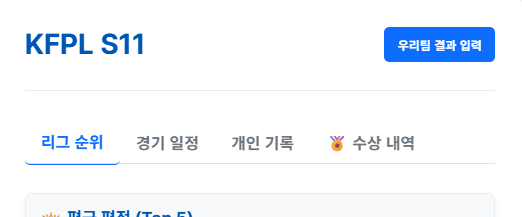
▲ 대회 정보 우측 상단에 노출되는 [우리팀 결과 입력] 버튼
2. 결과 입력할 경기 선택 및 매치 방식
모달창이 열리면 첫 번째 단계로 결과를 제출해야 하는 경기 목록(Step 1)이 나타납니다.
- 정렬 방식: 결과를 제출해야 하는 경기가 시간순(오래된 경기부터 위로)으로 정렬되어 나타납니다.
- 진행 상태 표시:
- 미입력 경기: 대기 상태로 표시되며, 클릭 시 결과 입력(Step 2) 창으로 넘어갑니다.
- 입력 완료 경기: 그린 체크마크(
✅ [N라운드] A팀 vs B팀)와 함께 연한 녹색 배경으로 표시됩니다. 이미 입력 완료된 경기를 클릭하면 스코어 수정은 불가능하며, 유튜브 경기 영상 링크(URL)만 수정/추가할 수 있는 모드(URL 수정 모드)로 진입합니다.
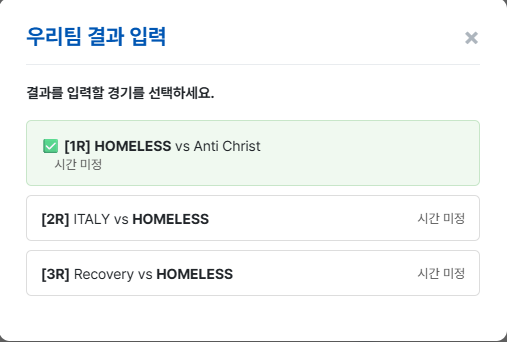
▲ 제출이 완료된 경기(위) 및 제출 대기 중인 경기(아래) 목록
- 매치 방식에 따른 차전별 자동 구성:
- 단판제 (Bo1): 리그 및 스플릿 리그의 일반적인 형태로, 1차전 결과만 입력합니다.
- 홈 앤 어웨이 (Bo2): 토너먼트 등의 형태로, 1차전과 2차전 결과 입력을 각각 진행해야 합니다.
- 3판 2선승제 (Bo3): 1차전, 2차전 및 3차전(재경기)까지 각각 개별 결과 입력 칸이 제공됩니다.
3. 경기 결과 제출 (2가지 시나리오)
경기를 선택하여 Step 2로 진입하면 차전별 결과를 입력할 수 있습니다. 각 경기 상황에 맞는 시나리오를 선택해 주세요.
중요
무승부 경기는 등록 방법이 다릅니다. 시나리오 1, 2 모두 숙지해주세요.
시나리오 1: 일반 승/패 경기 ➔ [자동 연동]
승패가 명확히 나뉜 경기에 적용되는 방법입니다.
- 결과 입력 섹션에서 [📅 최근 경기 선택하기] 버튼을 클릭합니다.
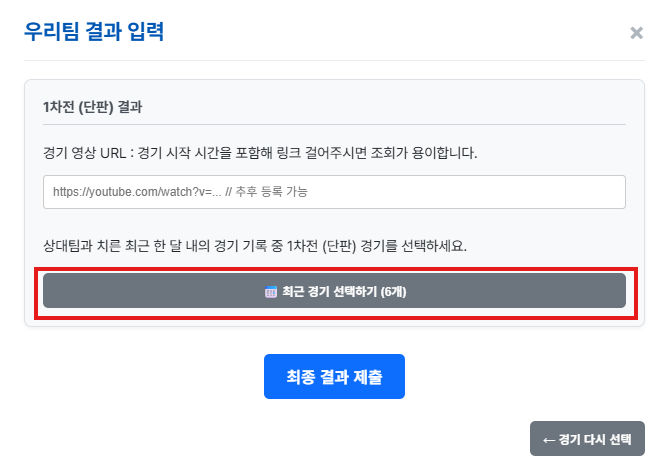
▲ 최근 경기 선택하기 화면
- 팝업창에 최근 1달간 상대 팀과 치른 경기 목록이 나타납니다. 이 중 방금 치른 경기 데이터를 선택합니다.
*Tip: Statify 서버는 EA 데이터를 약 15분 단위로 자동 수집합니다. 경기를 즉시 반영하고 싶다면, 각 팀 페이지에서 [갱신] 버튼을 직접 눌러주세요. (1분 내에 최근 경기 목록에 추가됨)*
- 선택이 완료되면 버튼 문구가
✅ 증빙 선택됨: A팀 3 : 0 B팀 형태로 변경되며 스코어가 자동 설정됩니다.
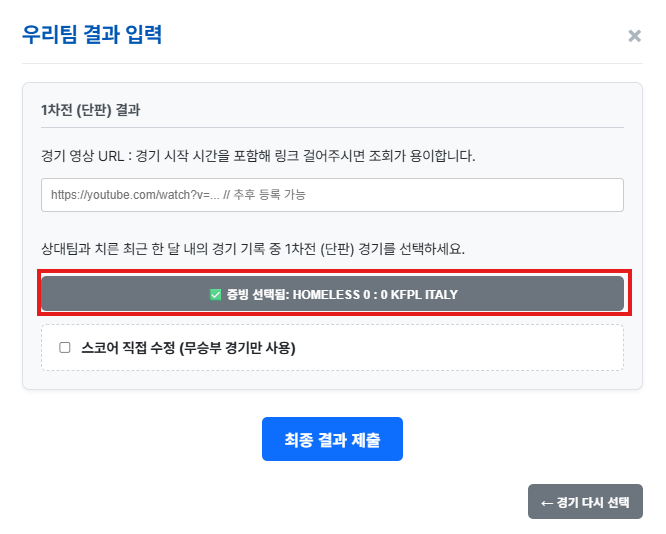
▲ 경기 선택 완료
- 우측 하단의 [최종 결과 제출] 버튼을 클릭하여 완료합니다.
시나리오 2: 무승부 경기 ➔ [자동 연동] + [스코어 보정]
전/후반 무승부로 끝났으나 게임 서버 내 커넥션 등의 문제로 '몰수' 등으로 기록되었거나, 분할 플레이를 진행한 경우 적용합니다.
- 시나리오 1과 동일하게 [📅 최근 경기 선택하기]를 눌러 해당 경기 데이터를 선택합니다. (이때 몰수 처리 등으로 인해 스코어가 3:0 등으로 보일 수 있습니다.)
- 경기 데이터 선택 후 활성화되는 [스코어 직접 수정 (무승부 경기만 사용)] 체크박스를 체크합니다.
- 활성화된 스코어 입력칸에 실제 정규 시간 종료 시점의 무승부 스코어(예:
2 : 2)를 직접 입력합니다.
- [최종 결과 제출] 버튼을 눌러 제출합니다.
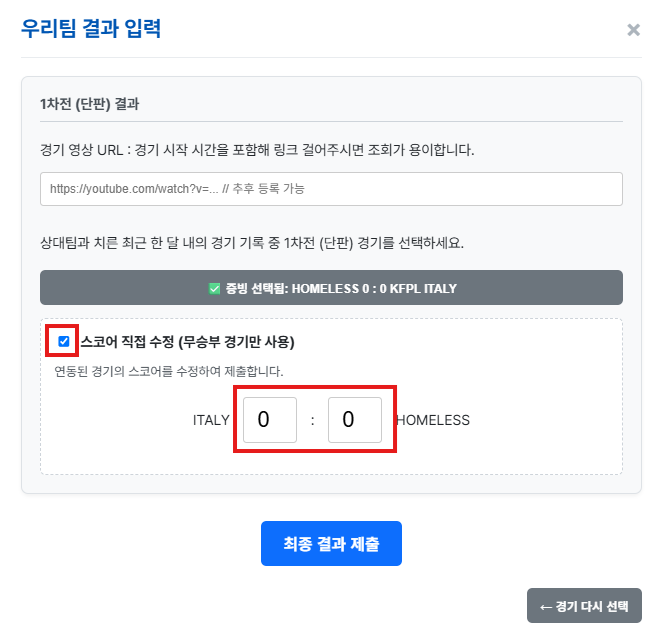
▲ 스코어 직접 수정 체크박스 체크 후 무승부 스코어 보정 화면
4. 유튜브 경기 영상 등록 및 관리
경기 결과의 증빙과 커뮤니티 공유를 위해 경기 유튜브 영상 링크를 연동합니다.
- 제출 시점: 결과를 처음 제출할 때 각 게임 섹션 상단의 "증빙을 위한 유튜브 영상 링크" 칸에 URL을 입력하여 함께 저장할 수 있습니다.
- 추후 별도 저장: 경기 결과를 먼저 등록한 뒤, 영상은 추후에 따로 추가할 수 있습니다.
방법: [우리팀 결과 입력] 모달 ➔ Step 1에서 완료된 경기(✅ 표시됨) 클릭 ➔ 유튜브 링크 입력 ➔ [유튜브 링크 수정] 버튼 클릭
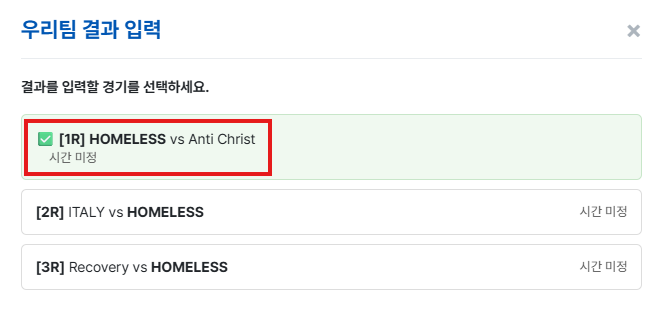
▲ 영상 URL 추후 별도 저장 시 이미 제출한 경기 선택
- 타임스탬프 권장: 여러 경기를 한 번에 통으로 녹화/방송한 경우, 유튜브 공유 기능의 '시작 시간' 기능(예:
&t=123s)을 사용해 해당 경기의 시작 시점으로 바로 연결되도록 링크를 걸어주시는 것을 권장합니다.
5. 개인 기록(스탯) 수정 요청 가이드
무승부 경기나 연동 오류로 인해 개인 스탯(득점, 도움, 평점 등)이 누락되거나 잘못 적용된 경우, 선수 또는 팀장이 사이트상에서 직접 정정을 요청할 수 있습니다.
참고
기존에 네이버 카페의 [개인기록 수정요청] 게시판을 통해 수동 접수받던 업무가 Statify 자체 온라인 시스템으로 완전히 이관되었습니다. 더 이상 카페 게시판을 이용하지 마시고 아래 절차에 따라 신청해 주세요.
5-1. 정정 요청 조건
- 권한: 로그인한 본인이 출전한 경기의 스탯 수정 요청을 제출할 수 있습니다.
- 대상: 수정 요청을 보내고자 하는 경기에 해당 선수가 실제로 출전했어야 합니다.
- 기한: 실제 경기 시간 종료로부터 24시간 이내에만 신청할 수 있습니다.
- 중복 방지: 동일한 경기에 대해 이미 대기 중인 수정 요청이 진행 중인 경우에는 추가 요청이 불가합니다.
5-2. 수정 요청 방법
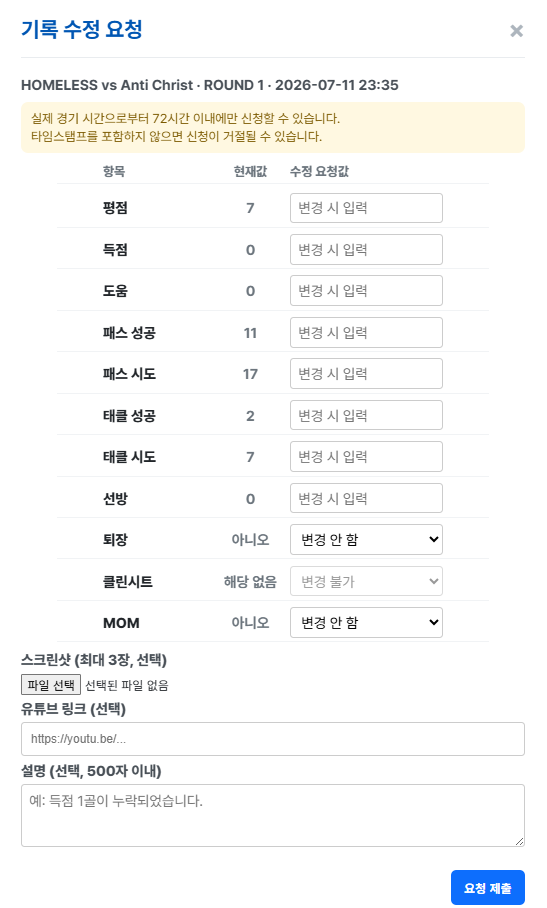
▲ 스탯 수정 요청 화면
- 버튼 클릭: 대회 페이지의 [경기 일정] 탭에서 기록에 이상이 있는 경기를 찾은 후, 우측의 [기록 수정 요청] 버튼을 클릭합니다. (로그인 후 자신이 출전한 본인 팀의 경기에만 활성화됩니다.)
- 값 수정: 수정 요청 모달창이 열리면 본인의 기존 기록(평점, 득점, 도움, 패스 성공/시도, 태클 성공/시도, 선방 등)이 노출됩니다. 정정이 필요한 스탯 항목의 [수정 요청값] 칸에 올바른 값을 기입합니다.
- 증빙 자료 첨부 (필수): 아래 두 항목 중 최소 1개 이상은 반드시 포함해야 제출이 가능합니다.
- 스크린샷: 경기 종료 후 스탯 요약 화면 캡처본 업로드 (최대 3장, 파일당 5MB 이하)
*Tip: 키퍼를 제외한 필드 플레이어는 '요약' 탭 캡처만으로 증빙이 가능하며, 골키퍼의 경우 선방 증빙을 위해 '골키핑' 탭까지 함께 캡처해야 합니다.*
- 유튜브 링크: 해당 플레이 상황이 잡힌 영상 URL. 타임스탬프(
&t=초)를 반드시 포함해 주시기 바랍니다. (타임스탬프 미포함 시 증빙 불충분으로 거절될 수 있습니다.)
- 설명 (선택): "득점 1골이 누락되었습니다." 등 500자 이내의 구체적인 상황을 기재합니다.
- 제출: [요청 제출]을 누르면 신청이 완료됩니다.
5-3. 결과 통보
- 운영진이 관리 페이지에서 스크린샷 및 영상 증빙을 확인하고 승인/거절 여부를 판정합니다.
- 승인 또는 거절 처리되는 즉시 결과와 상세 거절 사유가 디스코드 DM을 통해 개별 전송됩니다.
- 승인이 완료되면 Statify DB의 해당 경기 기록에 정정된 스탯이 실시간으로 자동 업데이트됩니다.
6. 기타 문의처
결과 입력 및 스탯 정정 요청 중 발생하는 시스템 오류 또는 특이사항은 아래 개발자/운영진의 디스코드 DM으로 언제든지 문의해 주세요.
- 스태프 명단
- 오류 제보 시 브라우저 환경, 관련 경기 ID, 스크린샷 등을 동봉해 주시면 더욱 신속한 처리가 가능합니다.
League Match Result Submission & Record Correction Guide
This guide explains how to submit KFPL league match results on Statify and how to request corrections for missing or incorrect individual statistics.
1. Open the Result Submission Window (Captains Only)
Only the team's captain and vice-captains can submit match results.
- Sign in with Discord: Visit Statify and sign in with the Discord account linked to your captain or vice-captain role.
- Open the competition page: Go to the page for the competition in which your team is participating.
- Click the result submission button: The [Submit Our Team's Result] button is visible only to captains and vice-captains. Click it to open the submission window.
▲ [Submit Our Team's Result] button shown at the top right of the competition information
2. Select a Match and Check the Match Format
When the modal opens, the first step displays the list of matches that require result submission (Step 1).
- Sort order: Matches awaiting submission are listed chronologically, with the oldest match first.
- Status display:
- Not submitted: Shown as pending. Click the match to proceed to the result entry screen (Step 2).
- Submitted: Shown with a green check mark (
✅ [Round N] Team A vs Team B) and a light-green background. Scores cannot be changed after submission. Selecting a completed match opens URL edit mode, where only the YouTube match video link can be added or updated.
▲ Submitted match (top) and match awaiting submission (bottom)
- Automatic fields by match format:
- Best of 1 (Bo1): The standard league and split-league format. Enter only Game 1.
- Home & Away (Bo2): Commonly used in tournaments. Enter Game 1 and Game 2 separately.
- Best of 3 (Bo3): Separate result fields are provided for Game 1, Game 2, and Game 3.
3. Submit the Match Result (Two Scenarios)
After selecting a match and moving to Step 2, you can enter the result for each game. Choose the scenario that matches the actual match.
Important
Drawn matches require a different submission method. Please review both scenarios.
Scenario 1: Standard Win/Loss Match ➔ Automatic Sync
Use this method when the winner and loser are clearly determined.
- In the result entry section, click [📅 Select Recent Match].
▲ Recent match selection screen
- A list of matches played against the opponent during the past month appears. Select the match you just played.
*Tip: Statify automatically collects EA data approximately every 15 minutes. To refresh immediately, click [Refresh] on either team's page. The match should appear in the recent match list within about one minute.* - After selection, the button changes to a message such as
✅ Evidence selected: Team A 3 : 0 Team B, and the score is filled in automatically. ▲ Match selection completed
- Click [Submit Final Result] at the bottom right to finish.
Scenario 2: Drawn Match ➔ Automatic Sync + Score Adjustment
Use this method when the match ended in a draw after regulation time but was recorded as a forfeit or another score because of a connection issue, or when the match was played in segments.
- As in Scenario 1, click [📅 Select Recent Match] and choose the relevant match data. The displayed score may be 3:0 or another incorrect value because of a forfeit record.
- After selecting the match, check [Edit Score Manually (Draws Only)].
- Enter the actual tied score at the end of regulation time in the enabled score fields, for example
2 : 2. - Click [Submit Final Result].
▲ Draw score adjustment after enabling manual score editing
4. Add and Manage the YouTube Match Video
Link the YouTube match video as evidence and for community sharing.
- At initial submission: Enter the URL in the “YouTube video link for evidence” field at the top of each game section and save it with the result.
- Add it later: You may submit the result first and add the video afterward.
Steps: [Submit Our Team's Result] modal ➔ select the completed match marked ✅ in Step 1 ➔ enter the YouTube URL ➔ click [Update YouTube Link].
▲ Select an already submitted match to add its video URL later
- Timestamp recommended: When one recording or stream contains several matches, use YouTube's start time option (for example,
&t=123s) so the link opens directly at the beginning of the relevant match.
5. Individual Record (Stat) Correction Requests
If individual statistics such as goals, assists, or ratings are missing or incorrect because of a drawn match or synchronization error, the player or team captain can request a correction directly on the site.
Note
The correction process previously handled manually through the Naver Cafe [Individual Record Correction Request] board has been fully moved to Statify's online system. Do not use the Cafe board; follow the procedure below.
5-1. Eligibility
- Permission: A signed-in player may request corrections only for matches in which that player participated.
- Match requirement: The player must have actually appeared in the match being corrected.
- Deadline: Requests are accepted only within 24 hours after the actual match ends.
- No duplicates: An additional request cannot be submitted while another request for the same match is pending.
5-2. How to Submit a Request
▲ Stat correction request screen
- Click the button: In the competition page's [Schedule] tab, locate the match with incorrect records and click [Request Record Correction] on the right. After signing in, the button is enabled only for your team's matches in which you participated.
- Enter corrected values: The modal displays your current stats, including rating, goals, assists, passes completed/attempted, tackles won/attempted, saves, and more. Enter the correct number in the [Requested Value] field for each item that needs correction.
- Attach evidence (required): Include at least one of the following:
- Screenshot: Upload the post-match stat summary screen (up to 3 images, maximum 5 MB per file).
*Tip: For outfield players, the Summary tab is generally sufficient. Goalkeepers should also capture the Goalkeeping tab to verify saves.* - YouTube link: Provide a video URL showing the relevant play. Include a timestamp such as
&t=seconds. A link without a timestamp may be rejected as insufficient evidence.
- Description (optional): Describe the issue in up to 500 characters, for example, “One goal is missing.”
- Submit: Click [Submit Request].
5-3. Decision Notification
- Administrators review the screenshots and video evidence on the management page and approve or reject the request.
- Once processed, the result and any detailed rejection reason are sent individually by Discord DM.
- When approved, the corrected statistics are automatically updated in the relevant Statify database record in real time.
6. Other Support
For system errors or exceptional situations during result submission or stat correction, contact a developer or administrator by Discord DM.
- Staff List
- When reporting an error, include your browser environment, the relevant match ID, and screenshots whenever possible for faster handling.
リーグ試合結果入力・記録修正申請ガイド
このガイドでは、KFPLリーグの試合結果をStatifyに登録する方法と、欠落または誤って反映された個人スタッツの修正を申請する方法を説明します。
1. 結果入力画面を開く(チーム長権限)
試合結果を登録できるのは、チームのチーム長および副チーム長のみです。
- Discordアカウントでログイン:Statifyにアクセスし、チーム長または副チーム長の権限が連携されたDiscordアカウントでログインします。
- 大会詳細ページへ移動:参加中の大会ページを開きます。
- 結果入力ボタンをクリック:チーム長・副チーム長にのみ表示される[自チーム結果入力]ボタンをクリックして入力画面を開きます。
▲ 大会情報の右上に表示される[自チーム結果入力]ボタン
2. 結果を入力する試合と試合方式を選択
モーダルを開くと、最初に結果を提出する必要がある試合一覧(Step 1)が表示されます。
- 並び順:結果未提出の試合が日時順で表示され、古い試合が上に並びます。
- 進行状態:
- 未入力試合:待機状態で表示され、クリックすると結果入力画面(Step 2)へ進みます。
- 入力済み試合:緑色のチェックマーク(
✅ [Nラウンド]Aチーム vs Bチーム)と薄い緑色の背景で表示されます。提出後はスコアを変更できません。入力済み試合をクリックするとURL修正モードになり、YouTube試合映像リンクのみ追加・修正できます。
▲ 提出済み試合(上)と提出待ち試合(下)
- 試合方式に応じた自動構成:
- 1試合制(Bo1):リーグおよびスプリットリーグの一般的な方式で、第1試合の結果のみ入力します。
- ホーム&アウェイ(Bo2):トーナメントなどで使用され、第1試合と第2試合の結果をそれぞれ入力します。
- 3試合2勝先取(Bo3):第1・第2・第3試合の結果入力欄が個別に表示されます。
3. 試合結果を提出する(2つのケース)
試合を選択してStep 2へ進むと、各試合の結果を入力できます。実際の試合状況に合うケースを選択してください。
重要
引き分け試合は登録方法が異なります。ケース1とケース2の両方を確認してください。
ケース1:通常の勝敗試合 ➔ 自動連携
勝者と敗者が明確な試合に使用します。
- 結果入力欄で[📅 最近の試合を選択]をクリックします。
▲ 最近の試合選択画面
- 直近1か月に相手チームと行った試合一覧が表示されます。直前に行った試合データを選択します。
*ヒント:StatifyサーバーはEAデータを約15分ごとに自動収集します。すぐに反映したい場合は、各チームページの[更新]ボタンを押してください。通常は約1分以内に最近の試合一覧へ追加されます。* - 選択すると、ボタンの表示が
✅ 証拠選択済み:Aチーム 3 : 0 Bチームのように変わり、スコアが自動設定されます。 ▲ 試合選択完了
- 右下の[最終結果を提出]をクリックして完了します。
ケース2:引き分け試合 ➔ 自動連携+スコア補正
規定時間では引き分けだったものの、接続問題などによりゲームサーバー上で没収試合等として記録された場合、または分割して試合を行った場合に使用します。
- ケース1と同様に[📅 最近の試合を選択]をクリックし、該当する試合データを選択します。没収処理などにより3:0等のスコアが表示される場合があります。
- 試合データを選択した後、表示される[スコアを直接修正(引き分け試合のみ)]にチェックを入れます。
- 有効になった入力欄へ、規定時間終了時の実際の引き分けスコア(例:
2 : 2)を入力します。 - [最終結果を提出]をクリックします。
▲ スコア直接修正を有効にした後の引き分けスコア補正画面
4. YouTube試合映像の登録・管理
試合結果の証拠およびコミュニティ共有のため、YouTube試合映像のリンクを登録します。
- 初回提出時:各試合欄上部の「証拠用YouTube映像リンク」へURLを入力し、結果と一緒に保存できます。
- 後から追加:結果を先に提出し、映像を後から追加することもできます。
手順:[自チーム結果入力]モーダル ➔ Step 1で✅表示の入力済み試合を選択 ➔ YouTube URLを入力 ➔ [YouTubeリンクを修正]をクリックします。
▲ 後から映像URLを追加する場合は提出済み試合を選択
- タイムスタンプ推奨:1本の録画・配信に複数試合が含まれる場合は、YouTube共有機能の開始時間(例:
&t=123s)を使用し、該当試合の開始位置へ直接移動できるリンクを登録してください。
5. 個人記録(スタッツ)修正申請
引き分け試合や連携エラーにより、得点・アシスト・評価などの個人スタッツが欠落または誤って反映された場合、選手またはチーム長がサイト上で直接修正を申請できます。
参考
従来Naver Cafeの[個人記録修正申請]掲示板で手動受付していた業務は、Statifyのオンラインシステムへ完全に移行しました。Cafe掲示板は使用せず、以下の手順で申請してください。
5-1. 申請条件
- 権限:ログイン中の本人が出場した試合についてのみ修正申請できます。
- 対象:修正対象の試合に、該当選手が実際に出場している必要があります。
- 期限:実際の試合終了から24時間以内のみ申請できます。
- 重複防止:同じ試合に対する申請が審査待ちの場合、追加申請はできません。
5-2. 修正申請方法
▲ スタッツ修正申請画面
- ボタンをクリック:大会ページの[試合日程]タブで記録に問題がある試合を探し、右側の[記録修正申請]をクリックします。ログイン後、自分が出場した自チームの試合でのみ有効になります。
- 値を修正:モーダルには現在の記録(評価、得点、アシスト、パス成功/試行、タックル成功/試行、セーブ等)が表示されます。修正が必要な項目の[修正申請値]へ正しい数値を入力します。
- 証拠資料を添付(必須):次のうち最低1つを必ず添付してください。
- スクリーンショット:試合終了後のスタッツ概要画面(最大3枚、1ファイル5MB以下)。
*ヒント:フィールドプレイヤーは通常「概要」タブで確認できます。ゴールキーパーはセーブ数の証明として「ゴールキーピング」タブも撮影してください。* - YouTubeリンク:該当プレイが確認できる映像URL。
&t=秒形式のタイムスタンプを必ず含めてください。タイムスタンプがない場合、証拠不十分として却下されることがあります。
- 説明(任意):「得点1が反映されていません」など、500文字以内で具体的に記載します。
- 提出:[申請を提出]をクリックします。
5-3. 結果通知
- 運営陣が管理ページでスクリーンショットおよび映像を確認し、承認・却下を判断します。
- 処理完了後、結果と詳細な却下理由がDiscord DMで個別に送信されます。
- 承認されると、Statify DBの該当試合記録へ修正済みスタッツがリアルタイムで自動反映されます。
6. その他のお問い合わせ
結果入力またはスタッツ修正申請中に発生したシステムエラーや特殊な事例は、開発者または運営陣へDiscord DMでお問い合わせください。
- スタッフ一覧
- エラーを報告する際は、ブラウザ環境、該当試合ID、スクリーンショット等を添付すると、より迅速に対応できます。